

Super Shipping for WooCommerce includes a shipment tracking feature that allows you to add a carrier, a tracking number and a direct link to the carrier’s tracking page to each order.
Customers will be able to view this information from the «My account» section and, if configured, they will also receive the tracking link in WooCommerce emails.
Enable shipment tracking
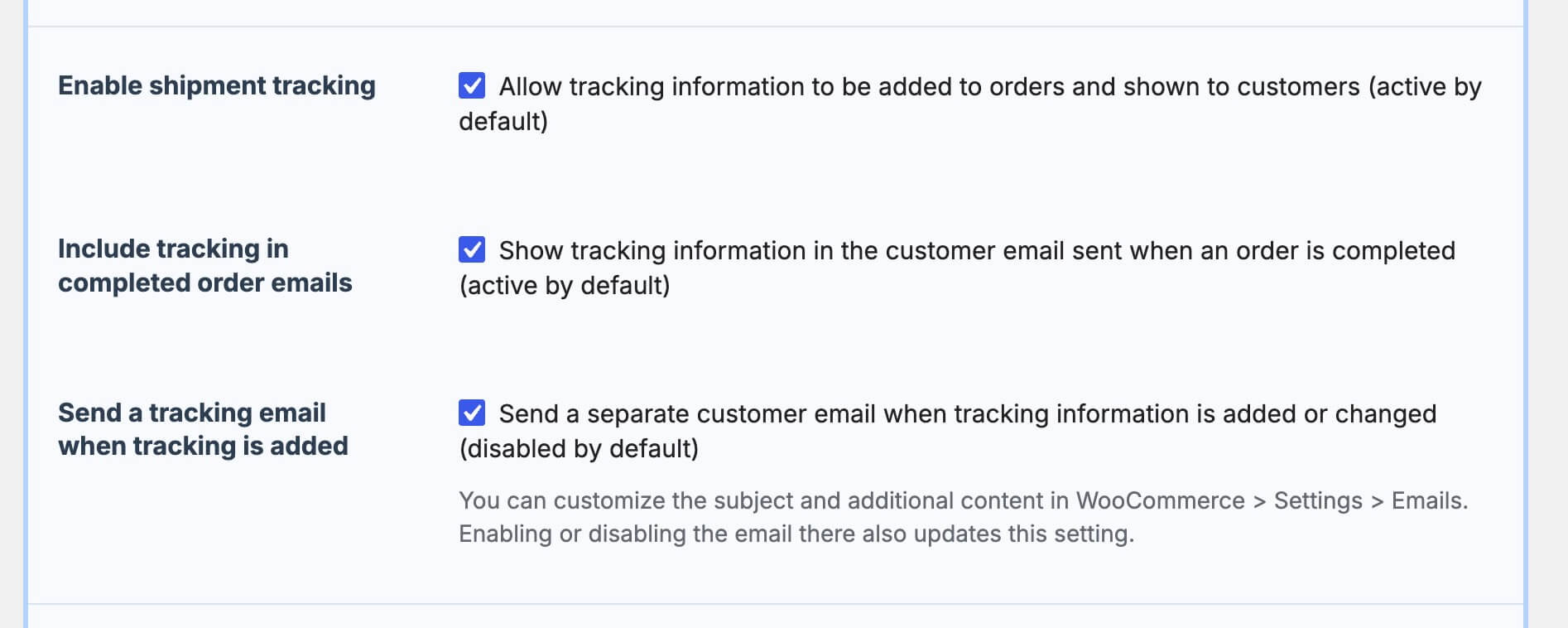
Go to «WooCommerce > Settings > Shipping > Super Shipping for WooCommerce»,find the Enable shipment tracking and tick the checkbox. This option is enabled by default the first time. If you do not want to use this feature, you can disable it at any time. Disabling the option does not delete tracking information that has already been saved in orders.
Add tracking information to an order
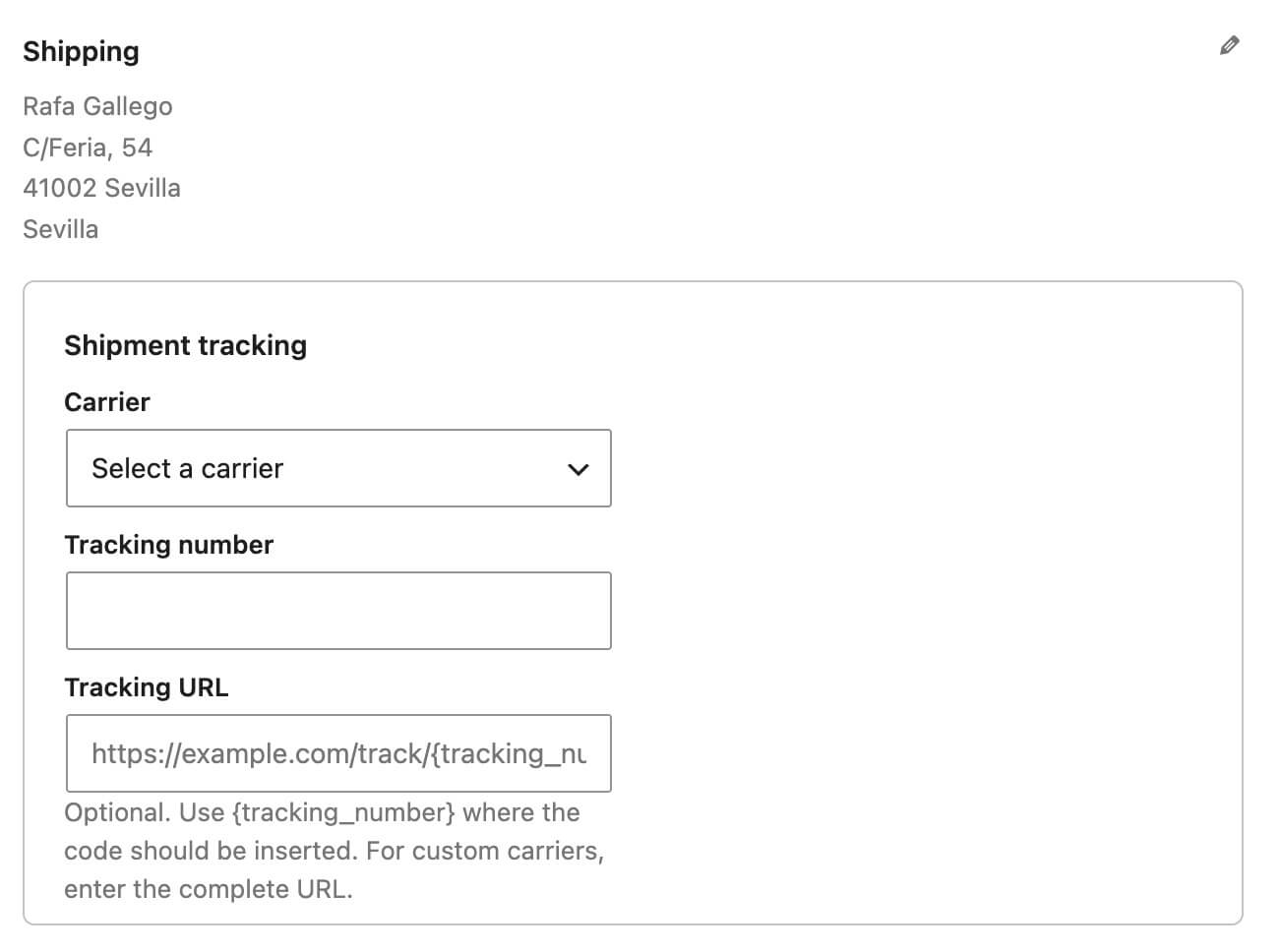
To add tracking information, open an order. In the order editing screen, you will find the Shipment tracking section just below the customer’s shipping details.
This section includes the following fields:
- Carrier: allows you to select a carrier from the list.
- Tracking number: enter the code provided by the carrier here.
- Tracking URL: the link customers will use to check the status of their shipment.
Select a carrier
Super Shipping includes a list of commonly used carriers. When you select one of them, the tracking URL will be filled in automatically.
The URL uses the {tracking_number} placeholder to automatically insert the tracking number into the link. For example:
https://www.correos.es/es/es/herramientas/localizador/envios/detalle?tracking-number={tracking_number}
After entering the tracking number, save or update the order.
Custom carriers
If the carrier does not appear in the list, select Other / Custom.
Then enter the following details manually:
- The carrier’s name.
- The complete tracking URL. You can also use
{tracking_number}within the URL if the carrier allows links to be generated automatically using the shipment code.
Tracking link
Once the information has been saved, Super Shipping will display a preview showing the carrier’s name and the tracking number. The tracking number will appear as a clickable link that takes you directly to the carrier’s tracking page.
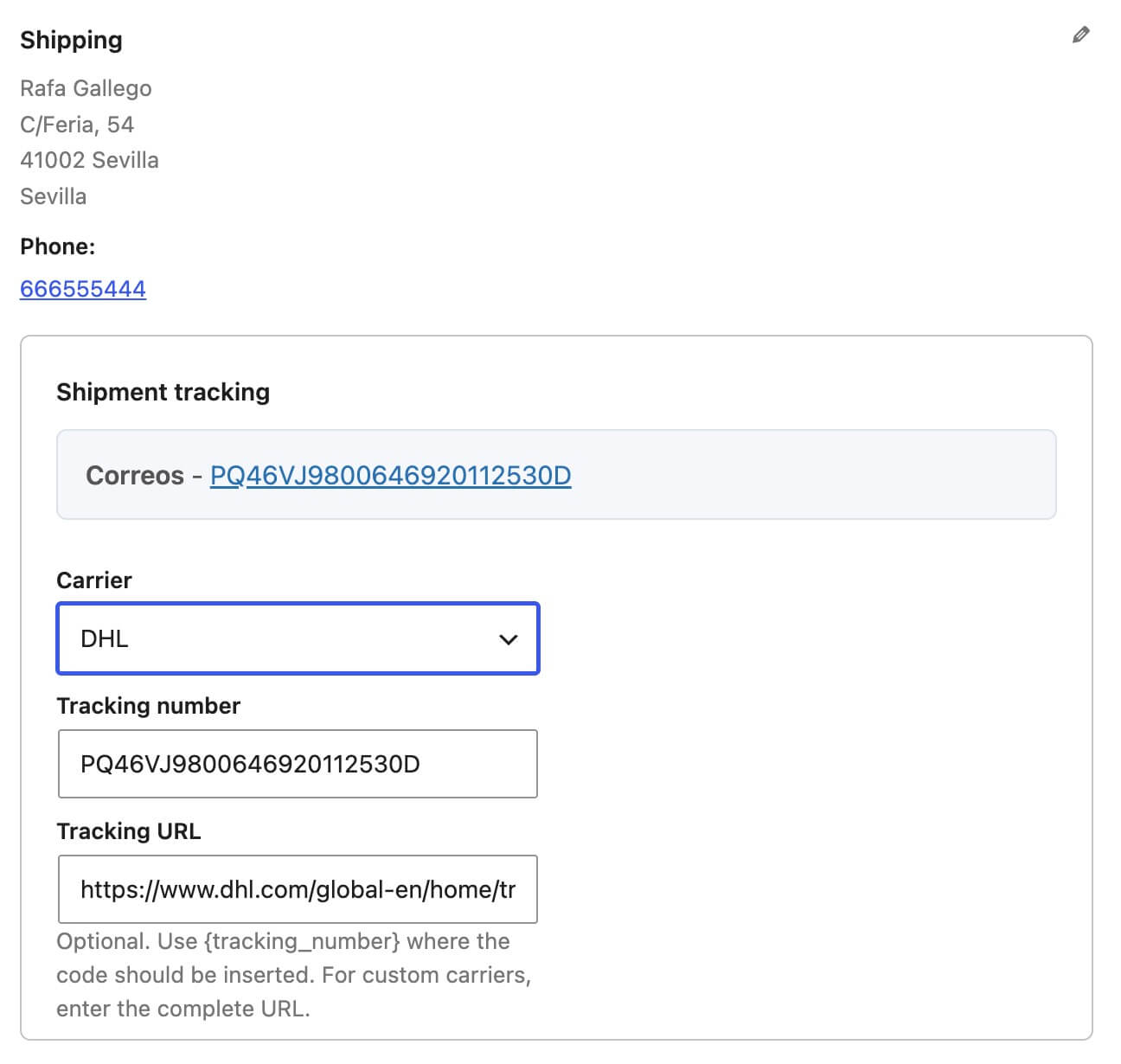
Super Shipping does not currently retrieve shipment status information automatically. Tracking is carried out through the carrier’s website using the configured link.
Information visible to the customer
When an order includes tracking information, the customer will be able to view it from the order details page: My account > Orders > View
The information will appear below the billing and shipping addresses and will include:
- The carrier.
- The linked tracking number.
- An explanation of how to access the tracking page.
Include tracking in completed order emails
From the general settings, you can enable the Include tracking in completed order emails option. When this option is enabled, the tracking information will be included in the email WooCommerce sends when the order changes to the Completed status. Remember to add the tracking information before saving the order as Completed. Otherwise, the email will be sent without this information. The customer will see the tracking information below the billing and shipping addresses.
Send a separate email
You can also send a specific email when tracking information is added to or modified in an order. You can enable or disable this option either from the general Super Shipping settings or from the WooCommerce email settings.
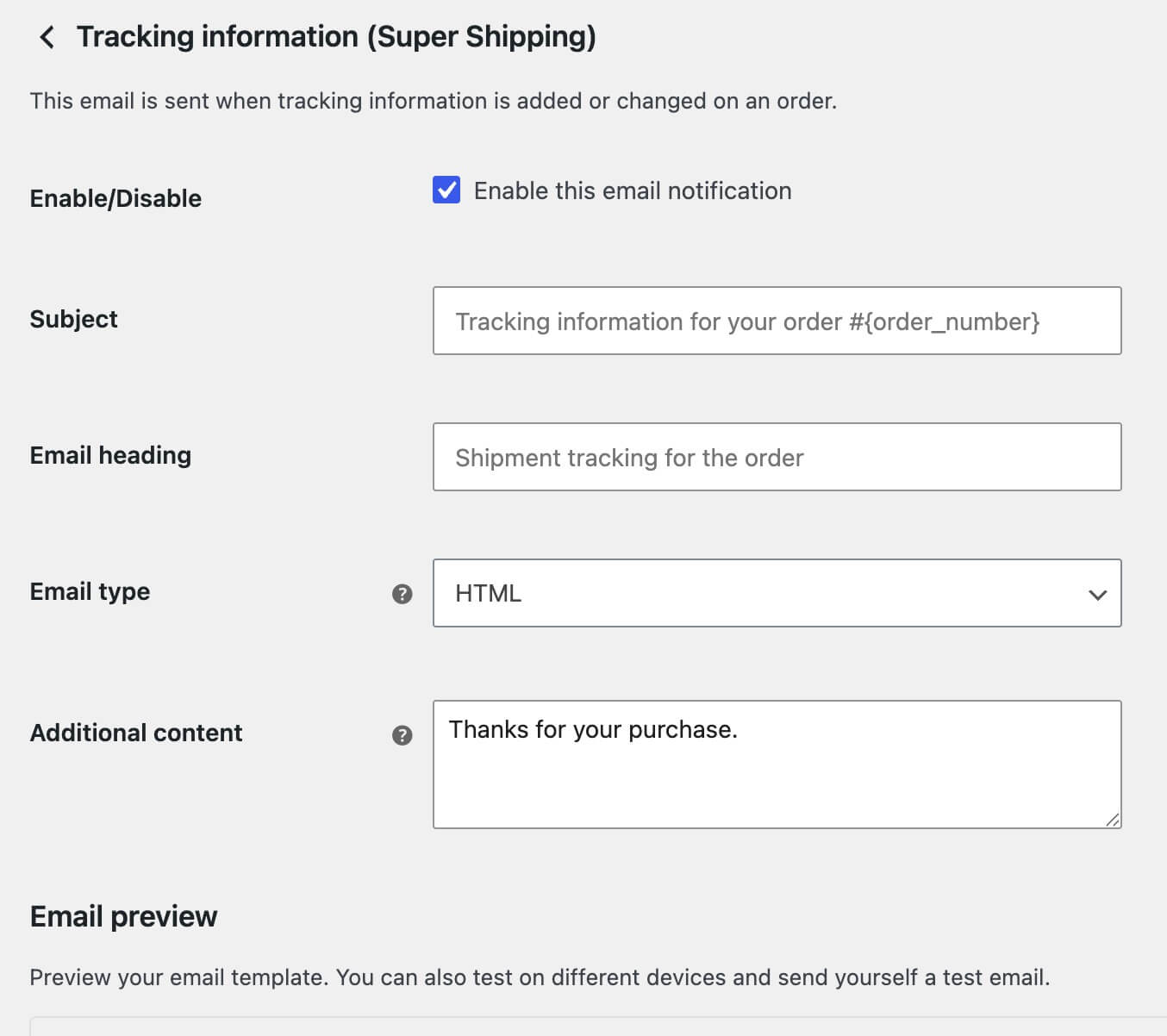
You can configure it by going to: WooCommerce > Settings > Emails > Tracking information (Super Shipping) From this screen, you can:
- Enable or disable the email.
- Customise the subject.
- Customise the email heading.
- Add additional content.
The email is sent to the customer associated with the order. The activation setting is synchronised with the corresponding checkbox in the general Super Shipping settings.
If you need to send the email again, open the order and find the Order actions section. Select Resend tracking email to customer. Then click the button to run the action. WooCommerce will send the email again with the tracking information available for the order.